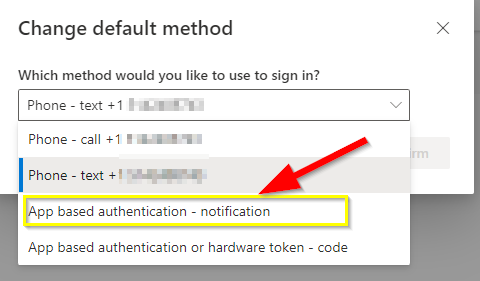
Comme vous savez, l’impact de l’usurpation d’identité peut causer des enjeux importants au niveau de la sécurité d’une entreprise. C’est pourquoi nous déployons l’authentification à multiples facteurs (MFA) que vous devrez dorénavant utiliser pour avoir accès à votre compte @gbda.ca. Celle-ci sera nécessaire lorsque vous vous connectez à votre compte tant sur votre ordinateur que sur votre cellulaire.


Le MFA est un moyen d’ajouter une couche supplémentaire de sécurité à vos comptes, réseaux et dispositifs. L’authentification multi facteur (MFA pour Multi-Factor Authentication) sécurise votre accès à votre compte en vous exigeant une confirmation de connexion.


Vous trouverez ci-bas la procédure qui vous permettra d’activer le MFA qui sera dorénavant obligatoire.


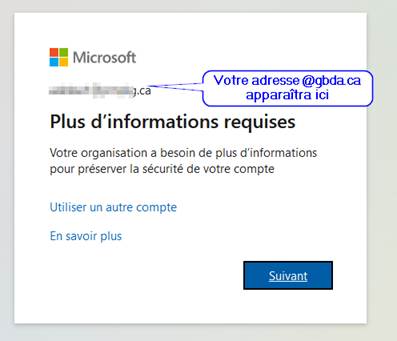
Pour donner suite à cette procédure, un administrateur aura préalablement activé la fonction MFA sur votre compte. Vous verrez que la fonction est activée lorsque vous serez appelé à fournir plus d’informations pour accéder à votre compte


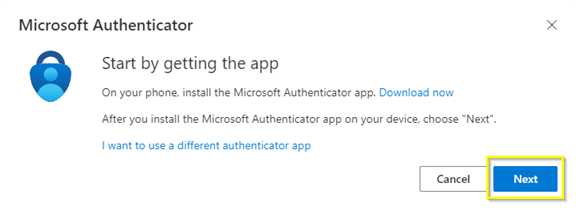
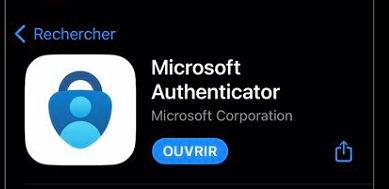
  • Dans votre cellulaire, vous devrez télécharger l’application Microsoft Authenticator (dans l’Apple Store)
 

Graphical user interface, text, application, chat or text message

Description automatically generated


  • Par la suite, dans votre ordinateur connectez-vous à votre compte @gbda sur le web
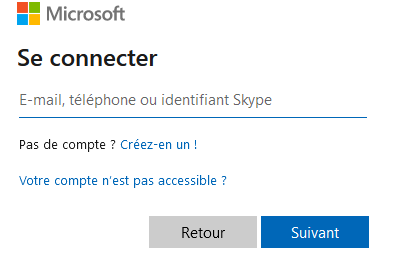
https://www.office.com

Timeline

Description automatically generated with medium confidence

Graphical user interface, text, application, email

Description automatically generated

Graphical user interface, application, Teams

Description automatically generated


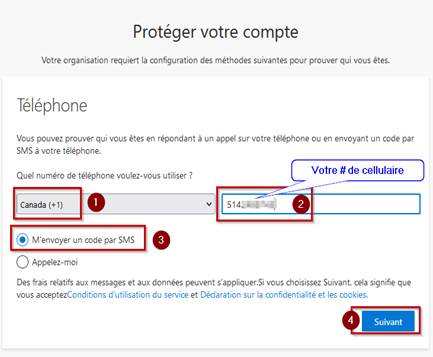
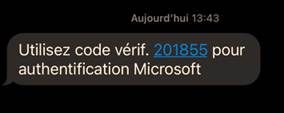
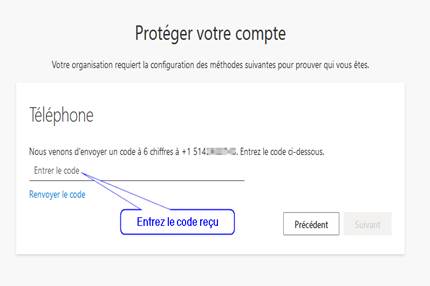
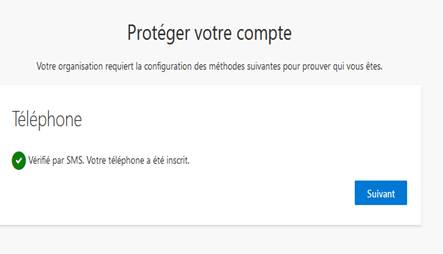
  • Vous recevrez un code par SMS

Graphical user interface, text, application

Description automatically generated


Graphical user interface, text, application

Description automatically generated

Graphical user interface, text, application, chat or text message, email

Description automatically generated

Graphical user interface, text, application, email

Description automatically generated


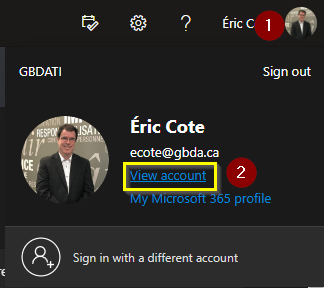
  • Cliquez sur votre pastille en haut à droite sur la page web puis sur « View Account » ou « Afficher le compte »
Graphical user interface, application

Description automatically generated


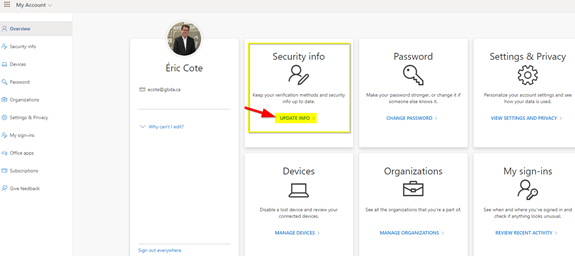
  • Sélectionnez « informations de sécurité »
Graphical user interface, application

Description automatically generated

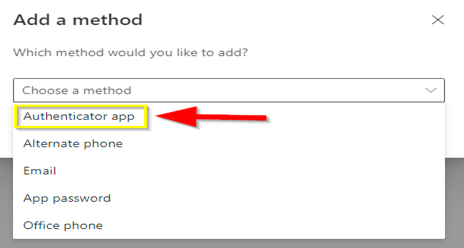
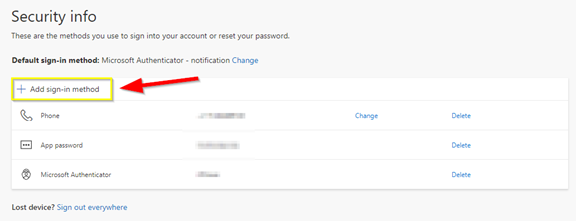
  • Sélectionnez l’option vous permettant d’ajouter une méthode
Graphical user interface, application

Description automatically generated

Graphical user interface, text, application, email

Description automatically generated

Graphical user interface, text, application, email

Description automatically generated

Graphical user interface, text, application, email

Description automatically generated

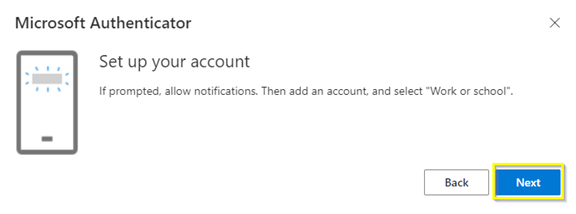
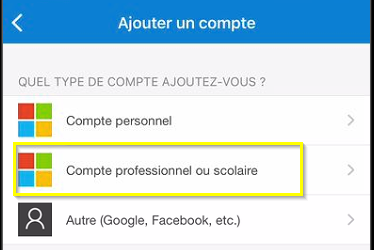
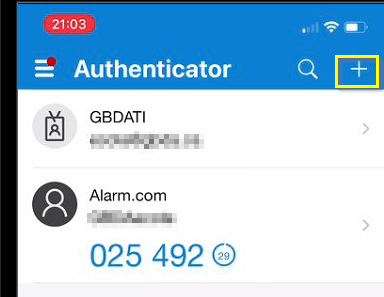
  • Ouvrez l’application que vous avez téléchargé (Microsoft authenticator) sur votre cellulaire puis appuyez sur le + en haut à droite
Graphical user interface, text, application

Description automatically generated

Graphical user interface, text, application

Description automatically generated

Graphical user interface, text, application, chat or text message

Description automatically generated


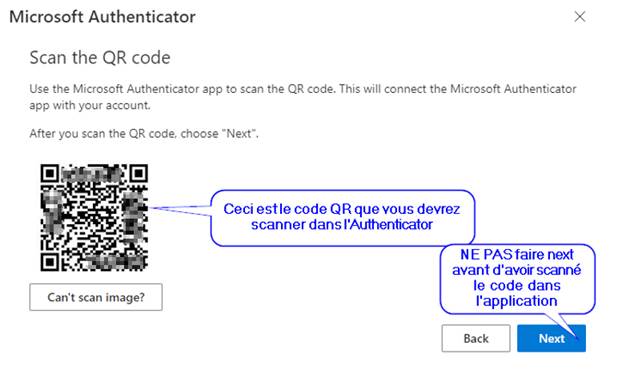
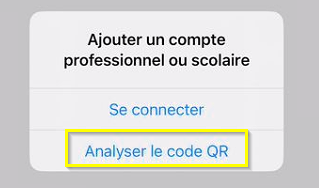
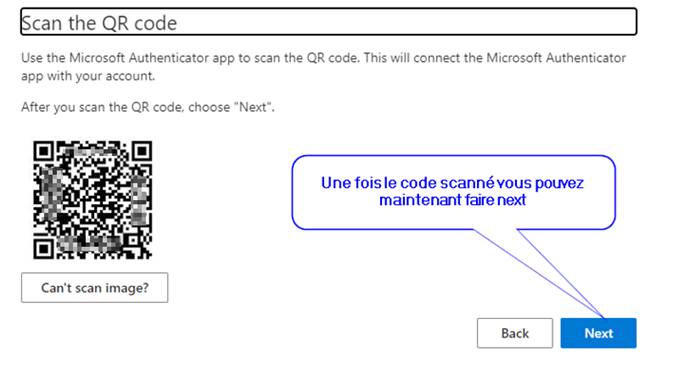
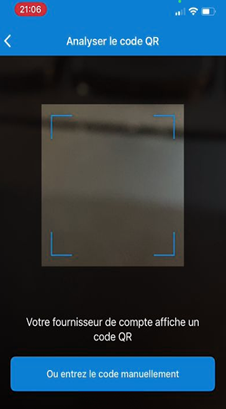
  • Scannez maintenant le code QR affiché à l’écran de votre ordinateur
A screenshot of a computer screen

Description automatically generated with medium confidence

Graphical user interface, text

Description automatically generated

Graphical user interface, text, application, chat or text message

Description automatically generated

Graphical user interface, text, application, chat or text message

Description automatically generated

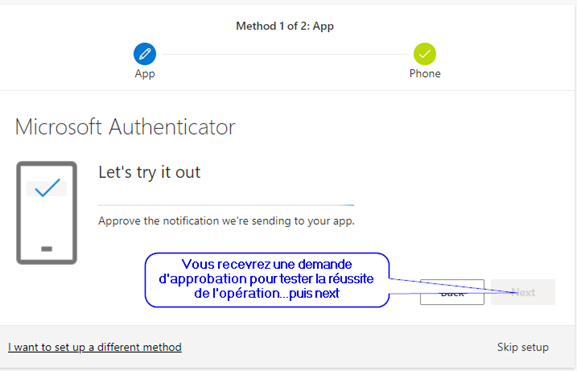
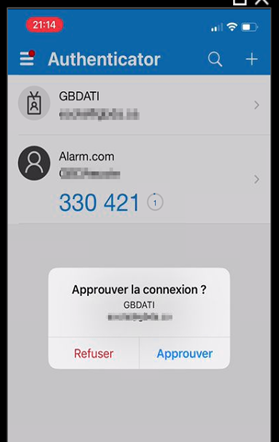
  • Cliquez sur Approuver

Graphical user interface, text, application, chat or text message

Description automatically generated


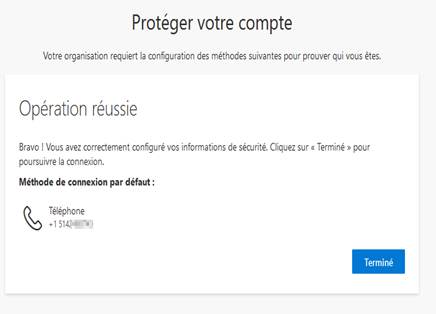
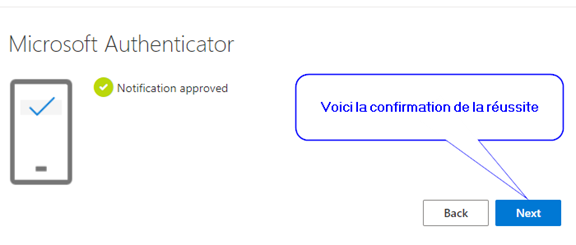
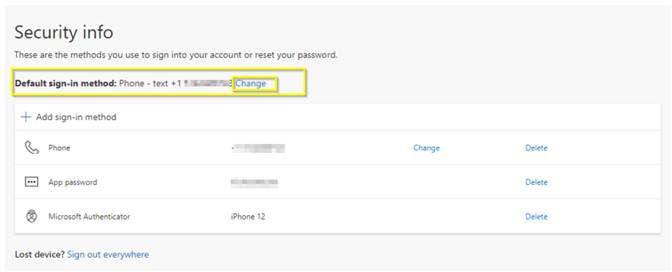
  • Vous serez ramené vers cet écran où vous devrez confirmer la méthode d’authentification.
Graphical user interface, application

Description automatically generated

Graphical user interface, text, application, Word, email

Description automatically generated